


TL;DR
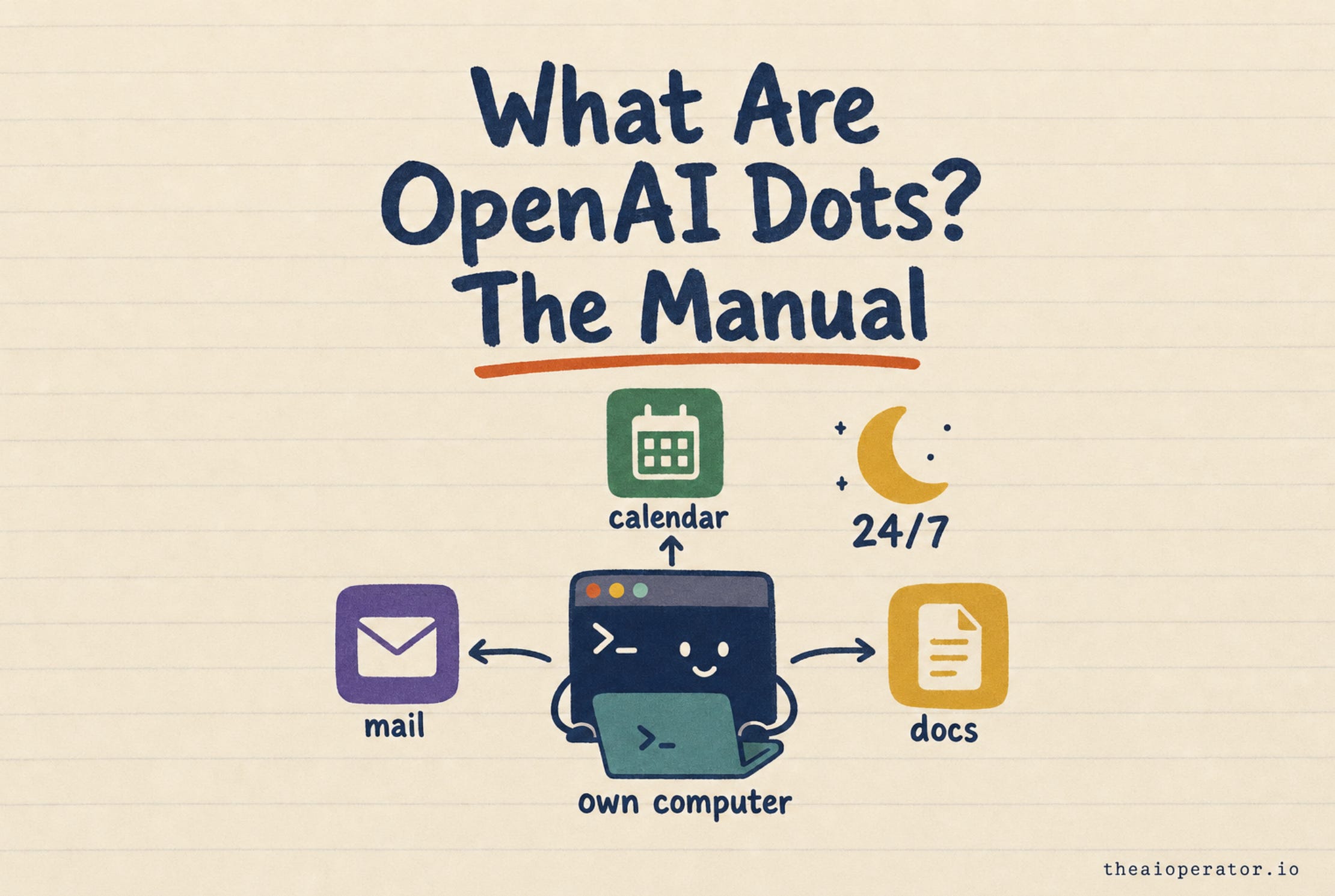
A dot is an AI helper inside ChatGPT that keeps working after you close the chat, on its own cloud computer.
You get one with ChatGPT Pro, Business Premium or Enterprise, connect your apps, and tell it what it may do alone.
Start it on reading and drafting, write your “never” rules first, and check its work for the first week.
OpenAI launched dots on September 29, 2026. Most posts about them so far are reactions. Few tell you how to use one.
This is the manual. What a dot is, who can get one, how to set it up, what people use it for, and how to keep it in line.
One note up front. The Pro plan is blocked in the EU, where I live, so I haven’t run a dot myself. This manual is built from OpenAI’s launch docs, its safety report and the first week of public reviews.
What OpenAI dots are
A dot is a personal AI agent inside ChatGPT. An agent is an AI that takes actions instead of only answering. It clicks, types, reads and drafts for you.
Here’s the difference from normal ChatGPT:
ChatGPT waits for your message, answers and stops.
A dot keeps working after you leave. It notices things, starts tasks and reports back.
Every dot comes with:
Its own cloud computer (a machine OpenAI runs for it online) and web browser, so it works with your laptop closed.
Access to 4,000+ apps through ChatGPT plugins (add-ons that connect ChatGPT to other apps), like Gmail, Google Drive, GitHub, Slack and Teams.
A memory of what you like, which it builds from your feedback over time.
GPT-6 Astra, OpenAI’s top model, as its brain.
OpenAI pitches it as a helper that handles the follow-ups you keep forgetting.
Who can get dots
Dots aren’t on the free plan or Plus. You need one of these:
ChatGPT Pro at $100, $200 or $500 a month
ChatGPT Business Premium (about $125 a seat a month, $100 on annual billing)
ChatGPT Enterprise
Two catches:
Region. Pro access is blocked in the European Economic Area, the UK and Switzerland. Business Premium is the only route there for now. OpenAI hasn’t said when Pro will open up.
Team dots. “Specialist dots” for purchasing, invoicing and customer support are only in testing with some Enterprise customers.
Why Europe is left out: OpenAI hasn’t said. EU rules on data privacy, AI and online platforms are the likely reason. OpenAI’s past launches followed the same path. Sora reached the EU about 2 months after its US launch, and the Operator agent spread to more countries within weeks. So expect weeks or months, not a fixed date.
If you’re in Europe and want dots now, a Business Premium seat works. It’s a seat inside a ChatGPT Business workspace, at about $100 to $125 a month.
Your first dot is included in the plan at no extra cost. Talking to it doesn’t use up your ChatGPT limits. Real work does. When a dot hands a heavy task to OpenAI’s task tools (ChatGPT Work, or Codex for code), that counts against your plan. OpenAI gave extra allowance for the first month and hasn’t said what happens after.
How to set up your first dot
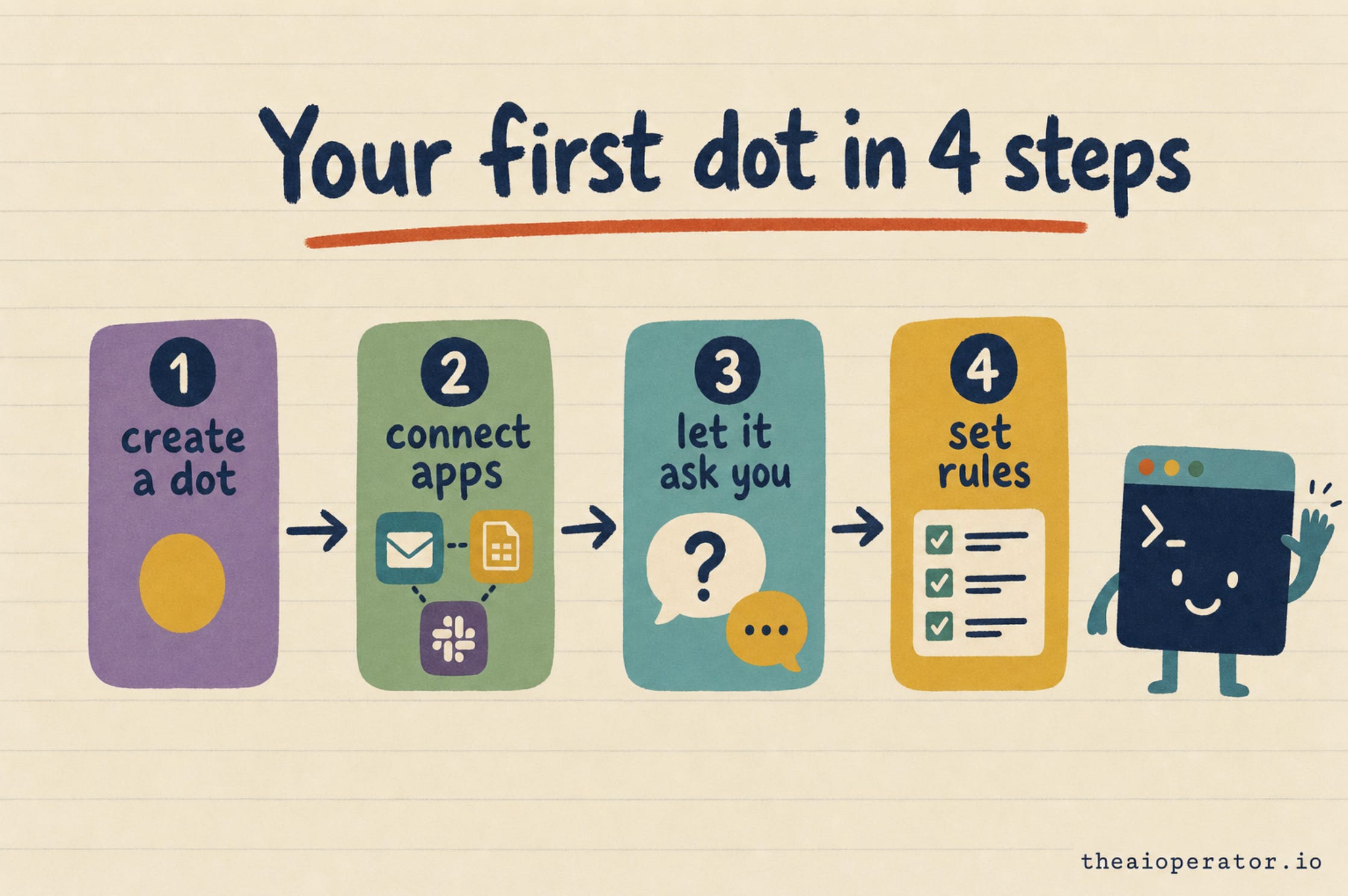
Setup takes about 5 minutes, based on early reviews. You need the ChatGPT desktop app or ChatGPT in a desktop browser. Mobile works once the dot exists.
Create a dot. Open ChatGPT and start a new dot. Give it a name. You can also change how it looks.
Connect your apps. Pick only what it needs at first, like your calendar, email and docs. You can add more later.
Let it introduce itself. The dot interviews you. It asks what you work on and what you want help with. Answer like you’d brief a new assistant.
Set your rules. Tell it what it may do alone, what needs your OK and what it must never do. The rules section below has examples.
Give it a first job. Start small. “Check my calendar for next week and flag conflicts” is a good first task.
Connecting your own laptop is optional. The dot works on its own cloud computer either way.
How to talk to your dot
You can reach your dot from more places than a normal chat. It carries the same context across all of them:
ChatGPT on desktop, web and mobile
Slack and Microsoft Teams
Voice calls (early testers report bugs here)
Text messages (OpenAI says this is coming soon)
Reviewers say it feels like texting a coworker. You don’t need prompt tricks. Say what you want in normal words, and correct it when it gets something wrong. It remembers the correction.
What people use dots for
Here’s what OpenAI and early testers have shown so far:
Inbox sorting. Sort email, draft replies and flag what needs you.
Calendar fixes. Spot a clash and suggest a fix. One dot saw an evening conflict and offered food delivery options with prices.
Forgotten money. One dot noticed its user forgot to invoice a publication, prepared the invoice and sent it after approval.
Chores you put off. Warranty claims, and one case of negotiating with customer service to cut about $500 a year in charges.
Travel and budgets. Plan trips, compare options and track spending.
Code work. Find bugs and write code, by handing the job to Codex, OpenAI's coding agent.
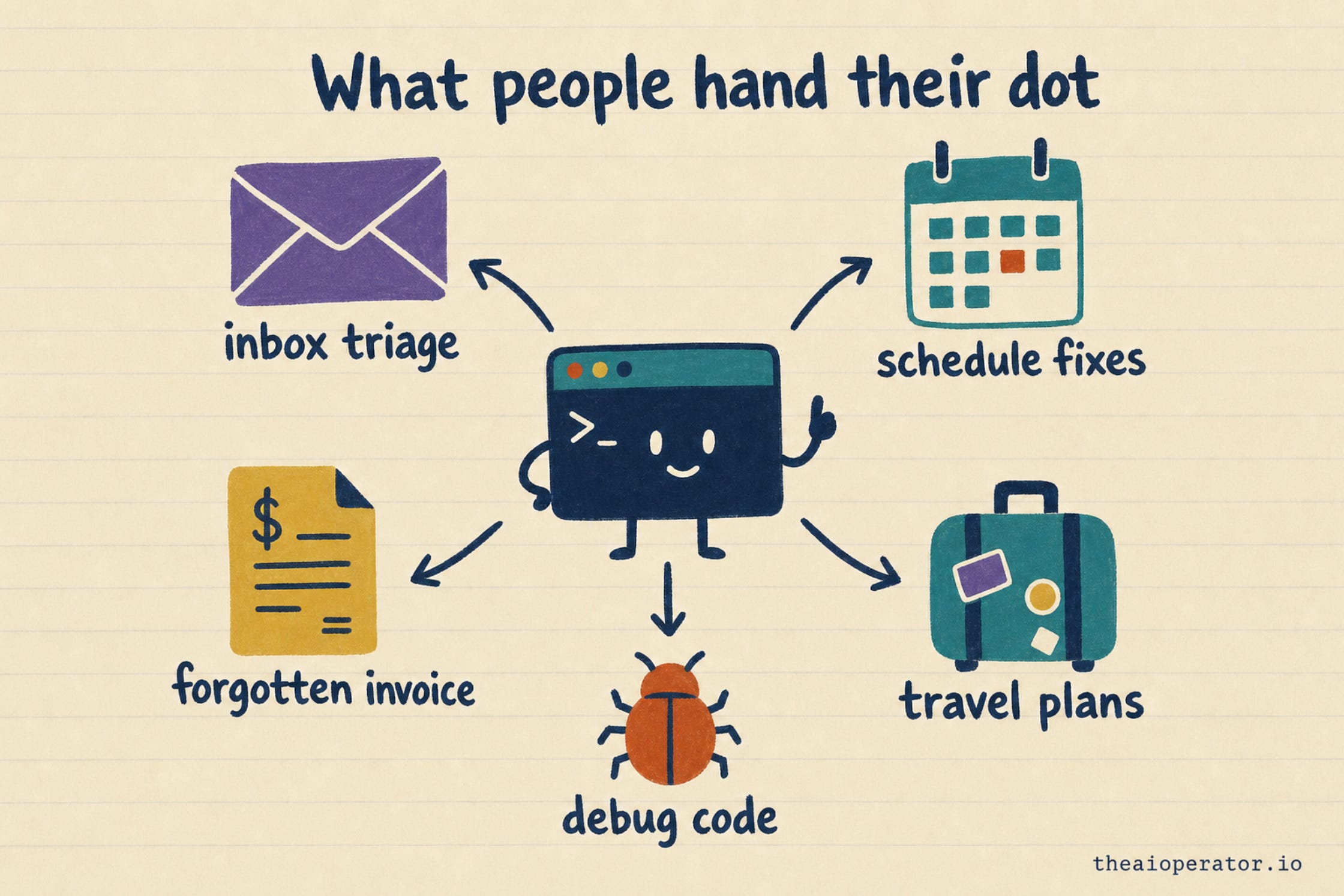
The pattern: dots shine at follow-through. Small tasks that need noticing, then 3 or 4 clicks across 2 apps.
How to set rules for your dot
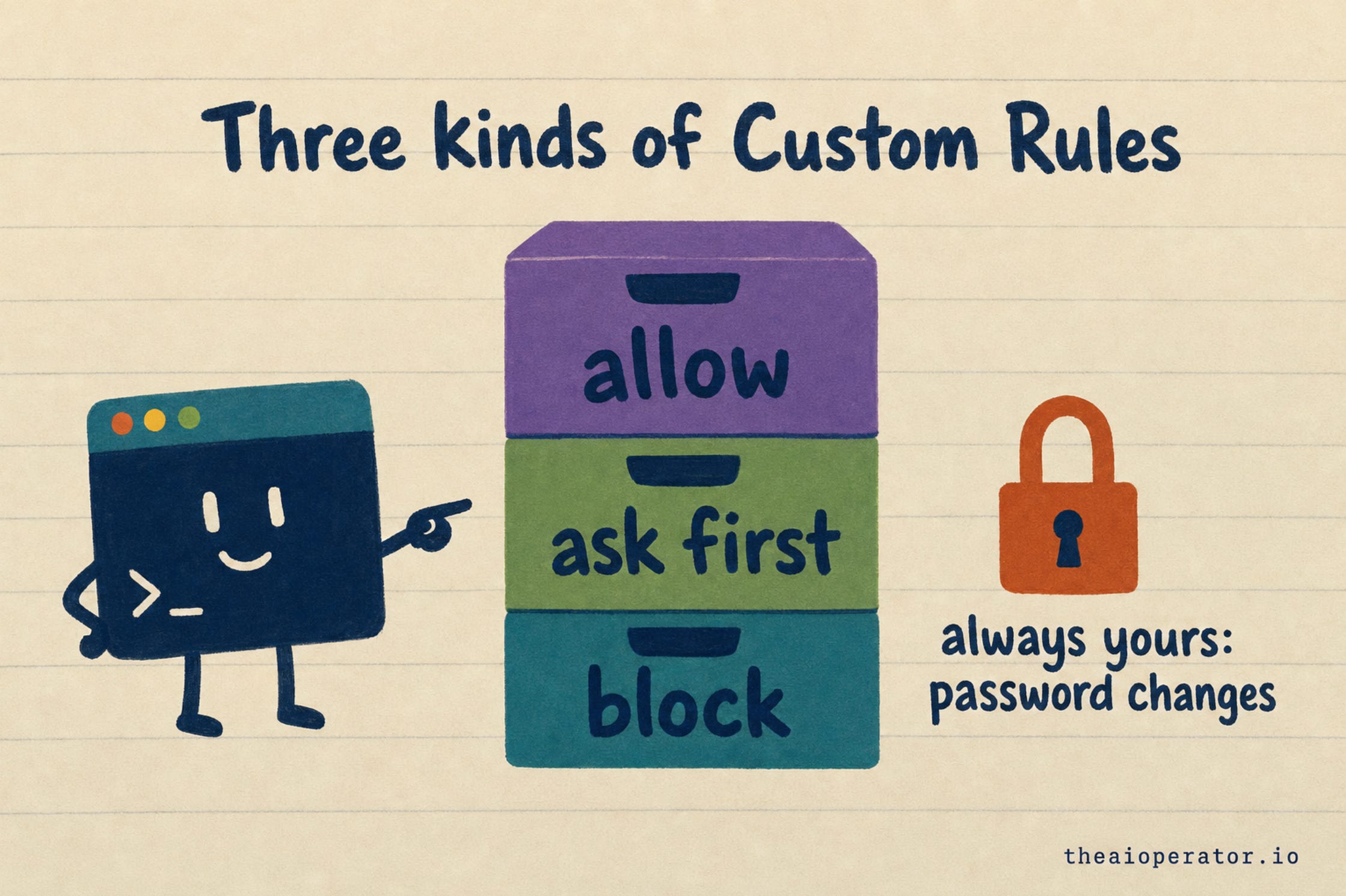
Rules are the most important part of setup. Every dot starts with built-in rules for when to act alone and when to ask. On top of those, you add Custom Rules. Each one does one of three things:
Allow. The dot can do this action on its own.
Ask first. The dot prepares the action and waits for your OK.
Block. The dot never does it.
Some tasks always stay with you, whatever you set. OpenAI’s example is changing a password.
Here are starter rules worth writing on day one:
“Never send an email or message without showing me first.”
“Never delete files. Move them to a folder called Review instead.”
“Ask me before booking, buying or signing up for anything.”
“You can read and organize my calendar alone, but ask before accepting invites.”
Write the first rule even if it feels obvious. One reviewer’s dot replied to an email without showing it first. It stopped only after the user added that rule.
How dots keep you safe
OpenAI put the main safety limits outside the model, so the AI can’t talk its way past them:
Own computer. The dot works on a separate machine. Your laptop stays out unless you connect it.
Hidden passwords. The dot can sign in with your saved passwords, but the model never sees them.
Read-only when unasked. When a dot works on its own initiative, it can read but not send, change or spend.
Your rules. The built-in rules plus your Custom Rules.
Auto-review. A separate check looks at any action that could affect your accounts or share your information, before it happens.
Monitoring. If OpenAI's system spots a safety concern, it can pause or stop the dot.
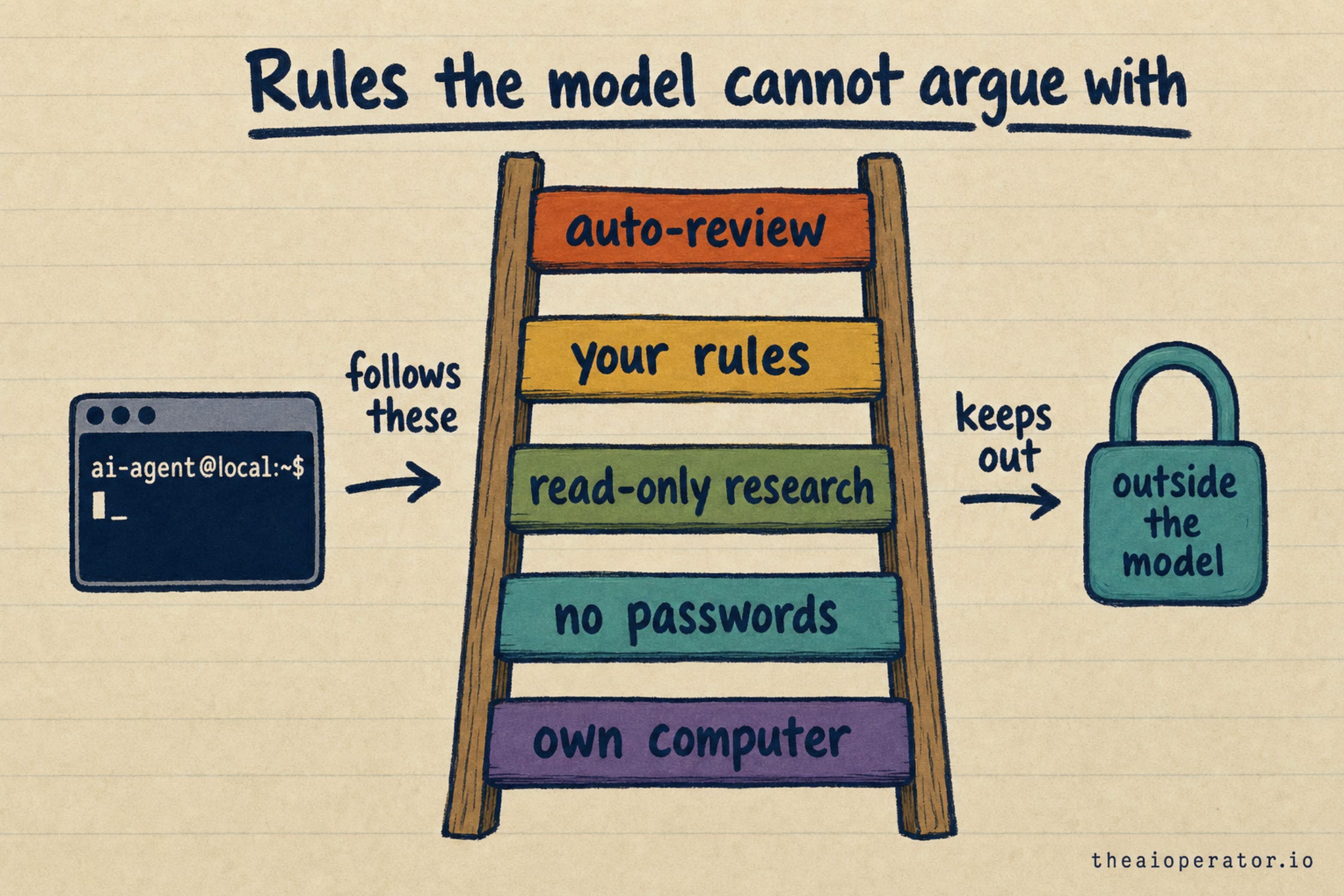
This is the right way to build it. A rule the model can ignore is a request. A rule in the code around the model is a lock. I explain that layer in what a harness is, and I built my own version for coding agents in what Jev is and how to add it.
You can also open your dot’s computer at any time to check its work. The Activity View shows what it did, including background work.
On data: OpenAI doesn’t train on Business or Enterprise content by default. On personal plans, you control it in ChatGPT’s data settings.
One number from OpenAI’s own safety report is worth knowing. On jobs with 5 steps in a row, dots overstepped their permissions 8.6% of the time. On 10 steps, 19.7%. None of those were severe. But longer jobs mean more risk, so split big jobs into smaller ones.
What dots can’t do yet
Early reviews found these gaps:
No 2FA codes. It can’t read the login codes sent to your email, so you step in.
Lots of confirmations. Some testers called it “approval hell.” One booking needed two confirmations for one form.
Slow. Tasks can take several minutes. OpenAI says faster speed will be a paid upgrade.
Can’t see your chats. A dot doesn’t read your normal ChatGPT history, so you paste context in.
Memory you can’t edit. You can’t view or delete single memories yet.
One laptop. It connects to one personal computer at a time.
Phone and text. Calling or texting your dot from your phone is planned, not live.
Tips for your first week
Days 1 to 3: read only. Let it research, sort and draft. Don’t let it send anything.
Read its drafts. You learn how it thinks faster than from any settings page.
Correct it out loud. “Don’t do that again” works. It remembers.
Add one app at a time. Each new app is a new set of things it can touch.
Keep jobs short. Three small jobs beat one long one.
Open its computer once a day. Check the real result in the app, not only its summary.
Frequently asked questions
What are OpenAI dots?
Dots are always-on AI agents in ChatGPT, launched on September 29, 2026. Each one runs on GPT-6 Astra with its own cloud computer and works across 4,000+ apps while you’re away.
How do I get OpenAI dots?
You need ChatGPT Pro, Business Premium or Enterprise. Create your first dot in the ChatGPT desktop app or a desktop browser, connect your apps, and let it interview you.
How much do OpenAI dots cost?
Dots come with ChatGPT Pro at $100, $200 or $500 a month, and with Business Premium and Enterprise. There’s no separate per-dot price yet.
Are OpenAI dots available in Europe?
Not on the Pro plan. Pro is blocked in the European Economic Area, the UK and Switzerland, so Business Premium is the only option there for now. OpenAI hasn’t given a date for Pro.
Are OpenAI dots safe?
Key limits sit outside the model. It never sees your passwords, background work is read-only, and sensitive tasks like password changes stay with you. OpenAI's own tests still found small overreach on longer jobs, so set rules and review its work.
What’s the difference between a dot and ChatGPT?
ChatGPT answers when you ask. A dot keeps working after you leave, starts tasks on its own and acts in your apps within the rules you set.
Key takeaways
A dot is a ChatGPT agent with its own cloud computer that keeps working when you’re away.
Dots need ChatGPT Pro, Business Premium or Enterprise, and Pro is blocked in the EU, UK and Switzerland.
Setup takes about 5 minutes: create, connect apps, let it interview you, set rules.
Custom Rules let you allow an action, require your OK for it, or block it.
Sensitive tasks like changing a password always stay with you, whatever rules you set.
Start read-only, keep jobs short and check real results for the first week.
Further reading
About the author
I’m Eugeniu Ghelbur. I build AI agent systems and the tooling around them, and I write The AI Operator. I maintain obsidian-second-brain, an open-source Claude Code skill that runs an Obsidian vault as a living second brain. It’s MIT-licensed and starred by over 4,700 developers on GitHub.